Phone app guide

How to use Kilnfriend

Pair over Bluetooth, build firing profiles, hand the kiln your Wi-Fi, then watch from anywhere.

01

Install the Android app

Download the APK from kilnfriend.com, open the file on your phone, and allow install from that source if Android asks.

Bluetooth, nearby devices, and (for cloud) location/Wi-Fi permissions may appear the first time you scan or sign in - choose Allow / While using the app.
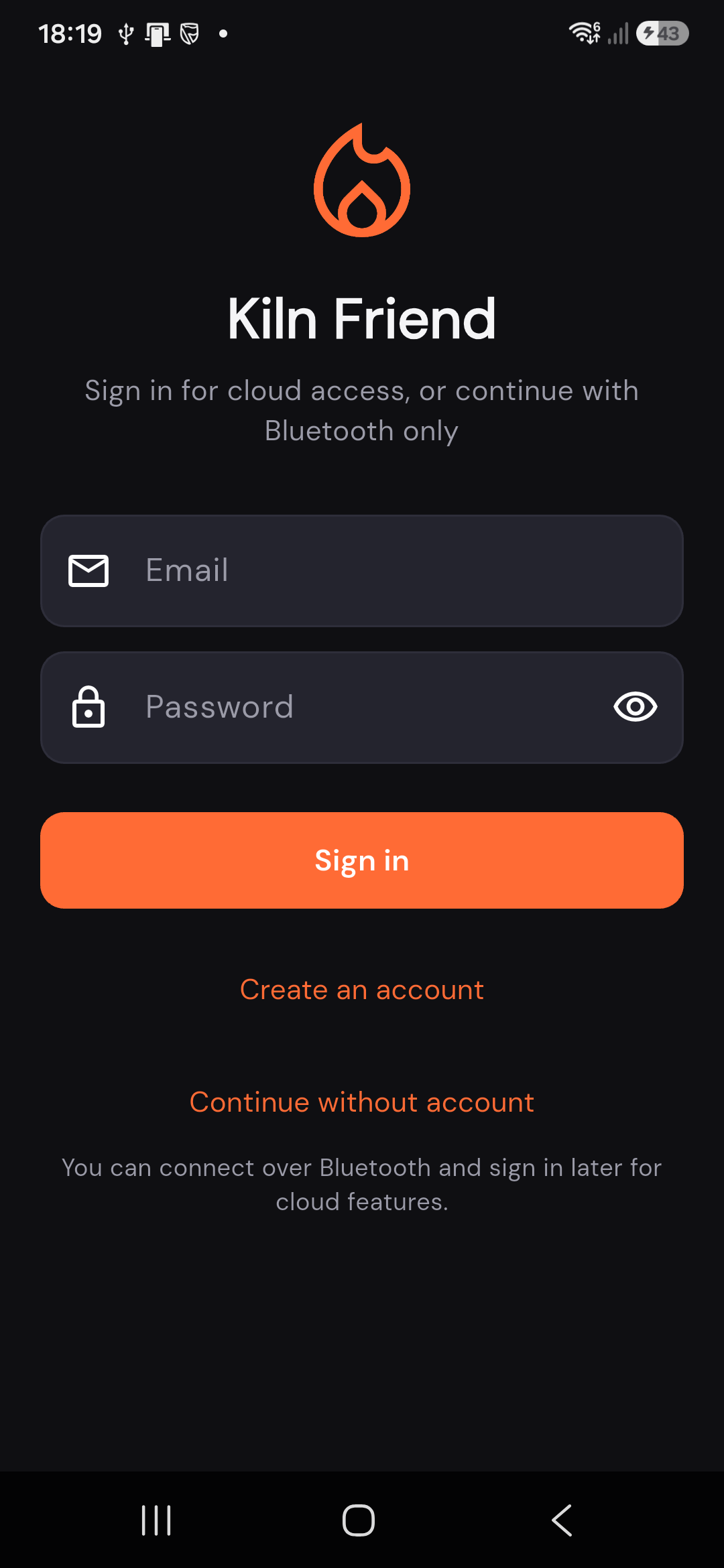
Kilnfriend sign-in screen on Android

02

Sign in, or skip for Bluetooth only

Use your email and password to unlock cloud features: remote monitoring and claiming a controller to your account.

  • Sign in - if you already have an account.
  • Create an account - email, password (8+ characters), then confirm the code we email you.
  • Continue without account - local Bluetooth only; you can sign in later from the home screen.
Sign in, create account, or continue without an account

03

Connect over Bluetooth

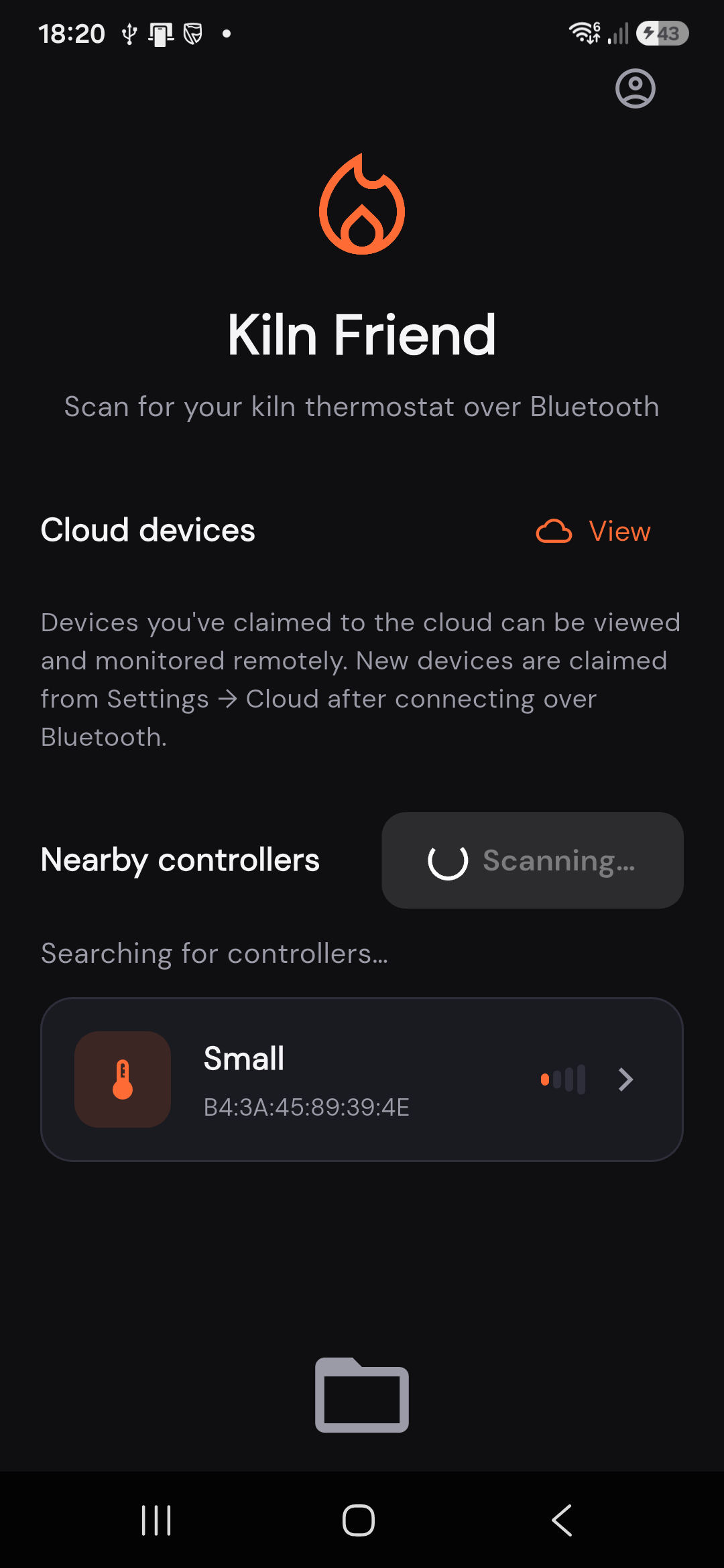
On the home screen, Kilnfriend scans for nearby controllers. Tap Scan if the list is empty, then tap your kiln (device name + MAC address).

Stay within Bluetooth range for the first connection. After that you can set up Wi-Fi so the kiln stays reachable from the cloud.

Home screen showing nearby Bluetooth controllers and cloud devices

04

Watch the live dashboard

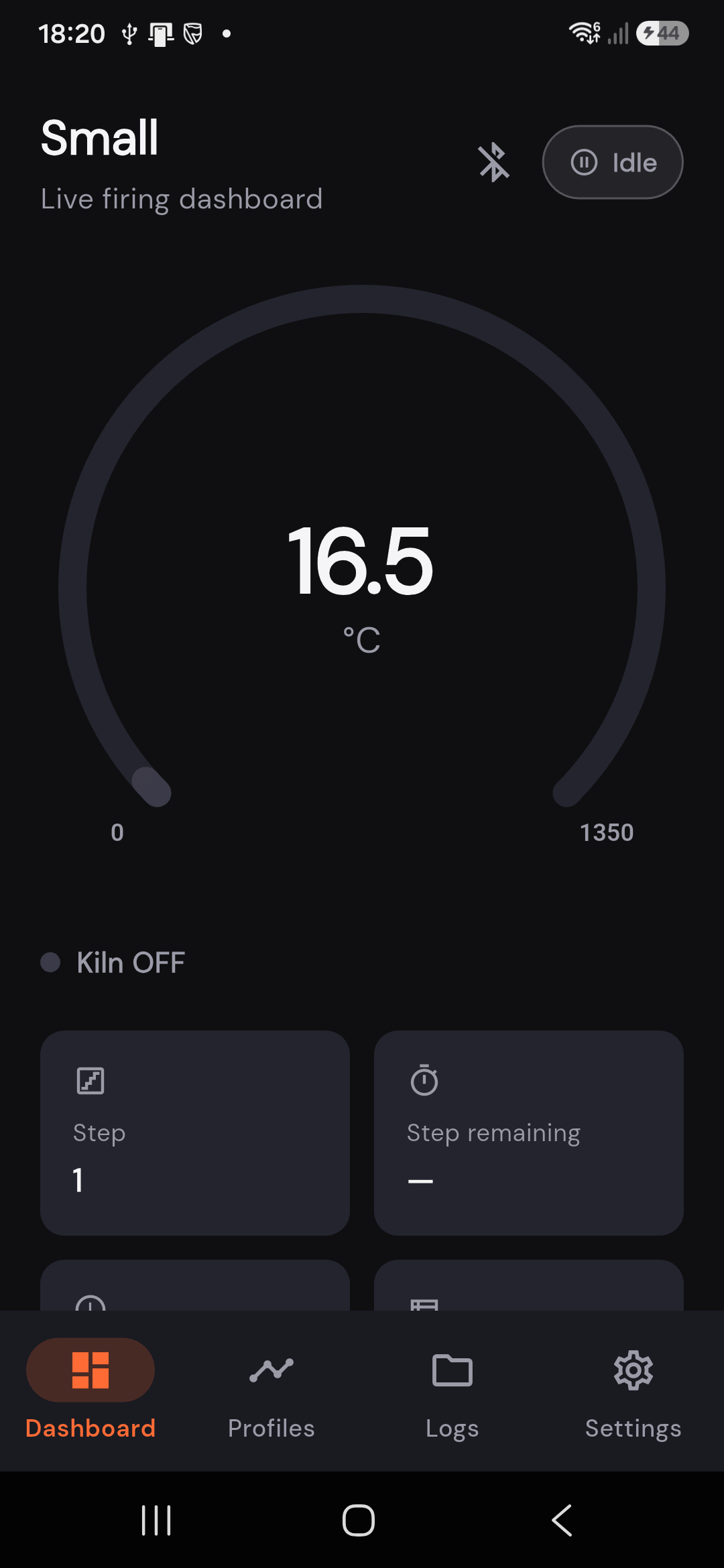
Once connected you land on the Dashboard: current temperature, kiln on/off, active step, and time remaining when a program is running.

Use the bottom tabs to move between Dashboard, Profiles, Logs, and Settings. Tap Disconnect (or the system back button) when you are done - a running firing keeps going on the kiln itself.

Live firing dashboard with temperature gauge

05

Build and run firing profiles

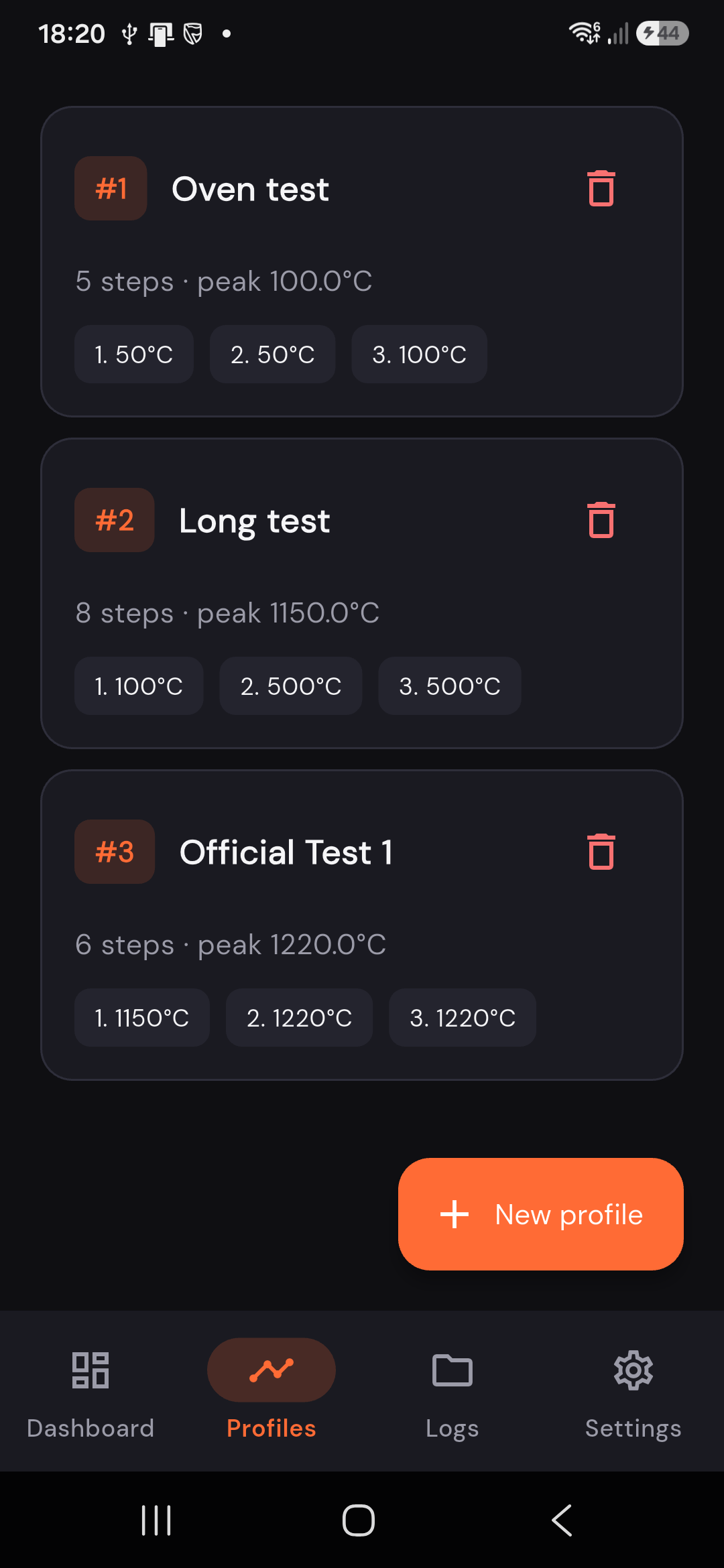
Profiles are ramp-and-hold schedules stored on the controller. Open the Profiles tab to see what is already on the kiln.

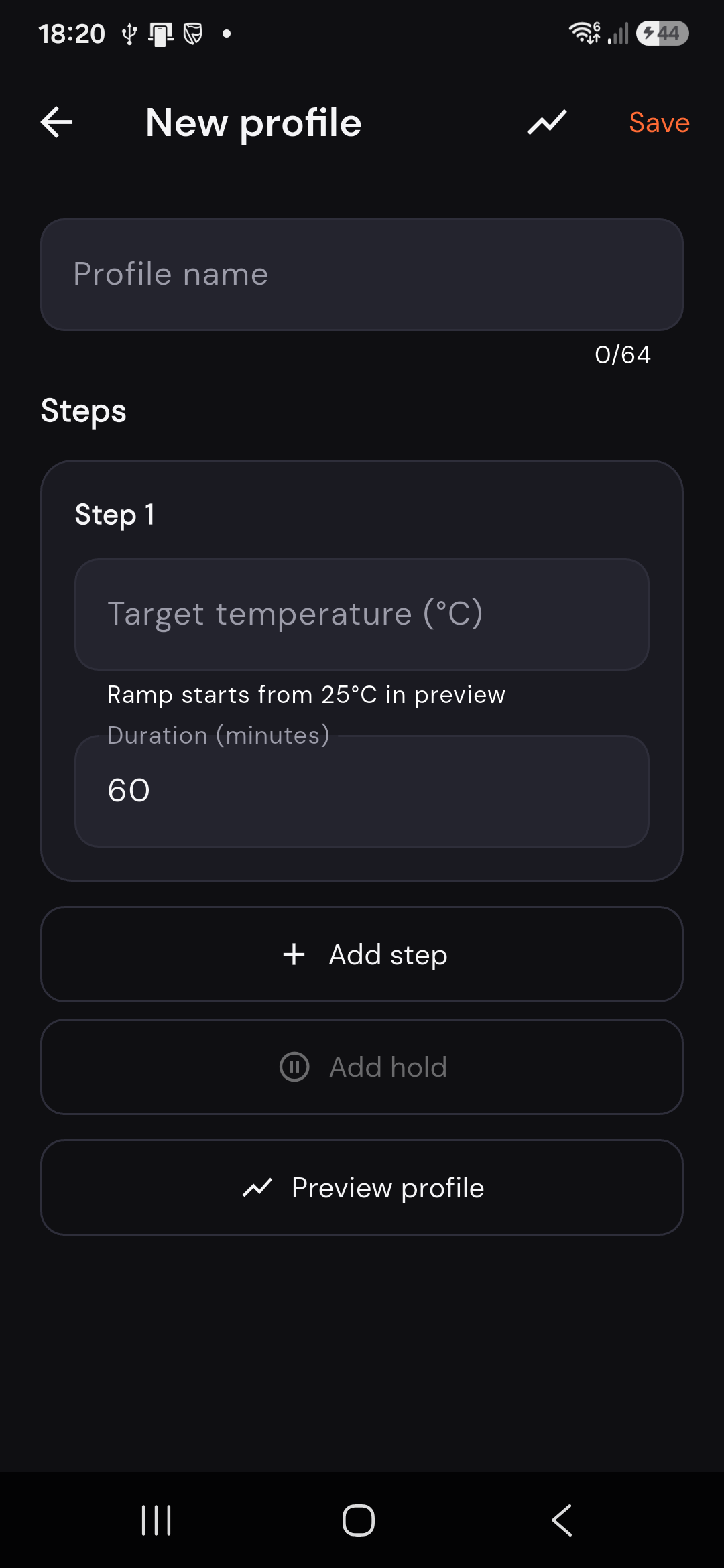
Tap New profile to add steps: target temperature and duration. Use Add hold for soaks, Preview profile to check the curve, then Save.

From the dashboard, start the profile you want when the kiln is ready. Stop from the app if you need to end a firing early.

List of firing profiles on the controller
New profile editor with steps

06

Review firing logs

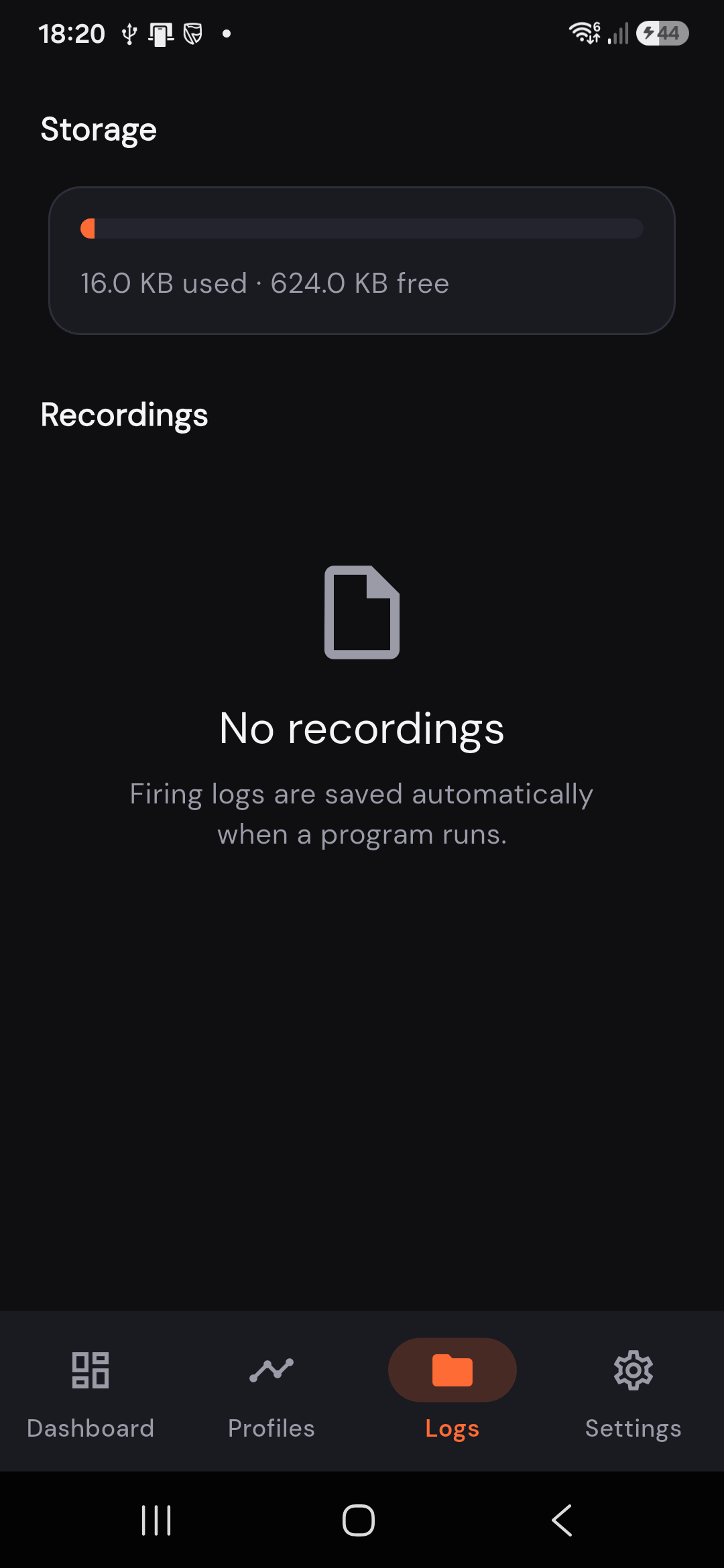
The Logs tab shows storage on the controller and recordings saved when a program runs. Open a recording to review the temperature curve, or manage space if storage is getting full.

Logs tab with controller storage and recordings

07

Device settings

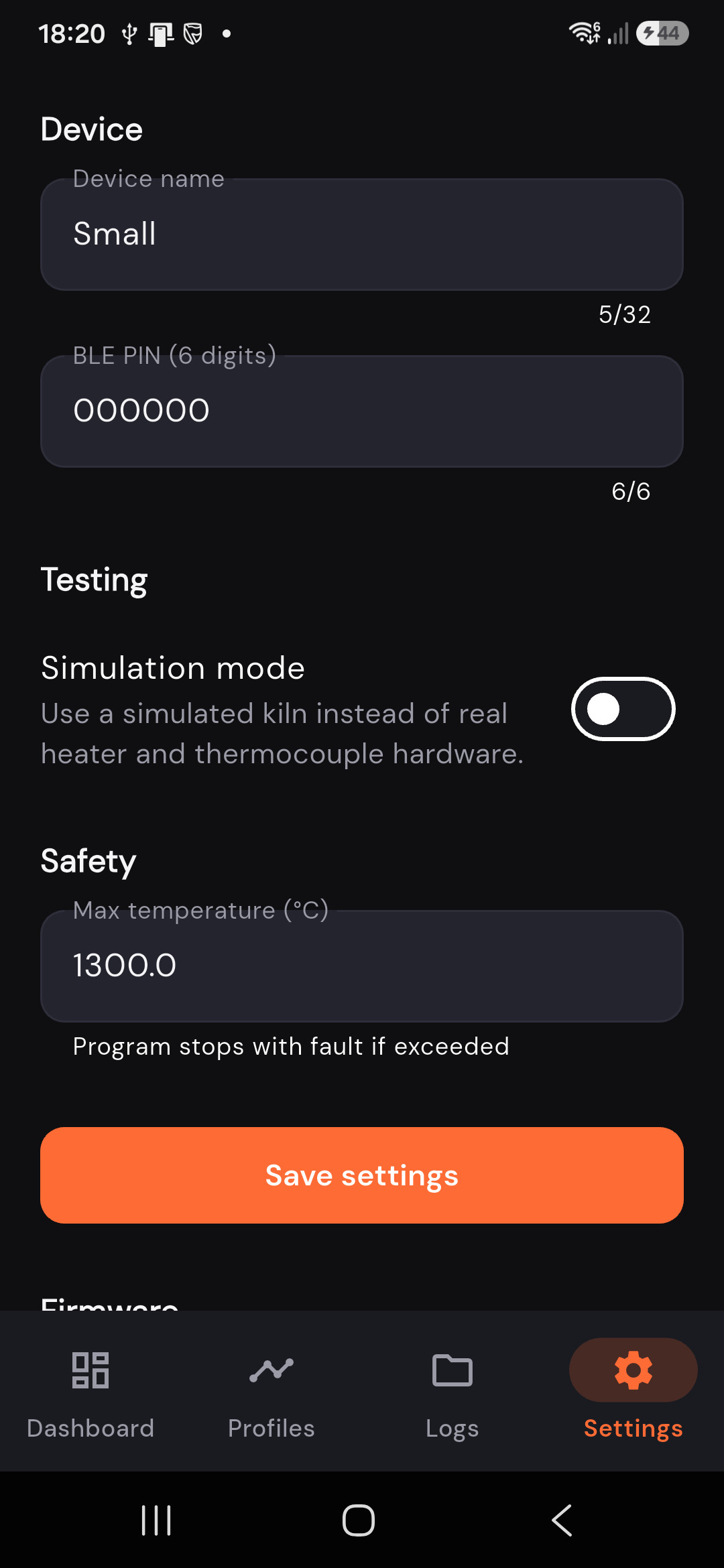
Under Settings you can rename the controller, set the six-digit BLE PIN, turn simulation mode on for testing, and set a maximum temperature safety limit.

Tap Save settings to write changes to the device.

Device settings including name, PIN, and max temperature

08

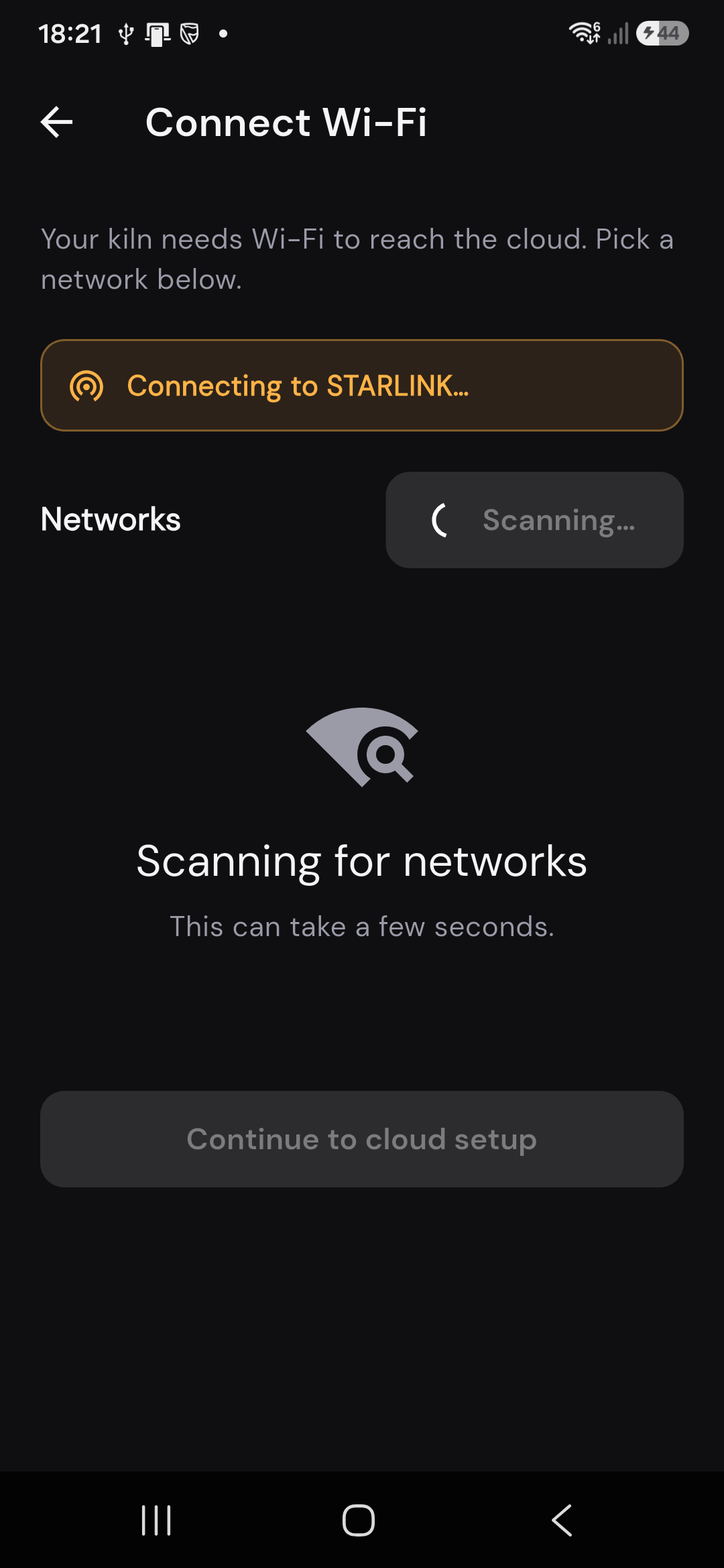
Give the kiln Wi-Fi for the cloud

Sign in first, connect over Bluetooth, then open Settings and scroll to Cloud.

  1. Tap Set up cloud access (or Reconfigure cloud access if it is already claimed).
  2. Pick your Wi-Fi network and enter the password when asked.
  3. Continue through cloud setup so the controller is claimed to your account.

When status shows online in the cloud, you can leave Bluetooth range and still monitor from the app.

Connect Wi-Fi screen for cloud provisioning

09

Update firmware

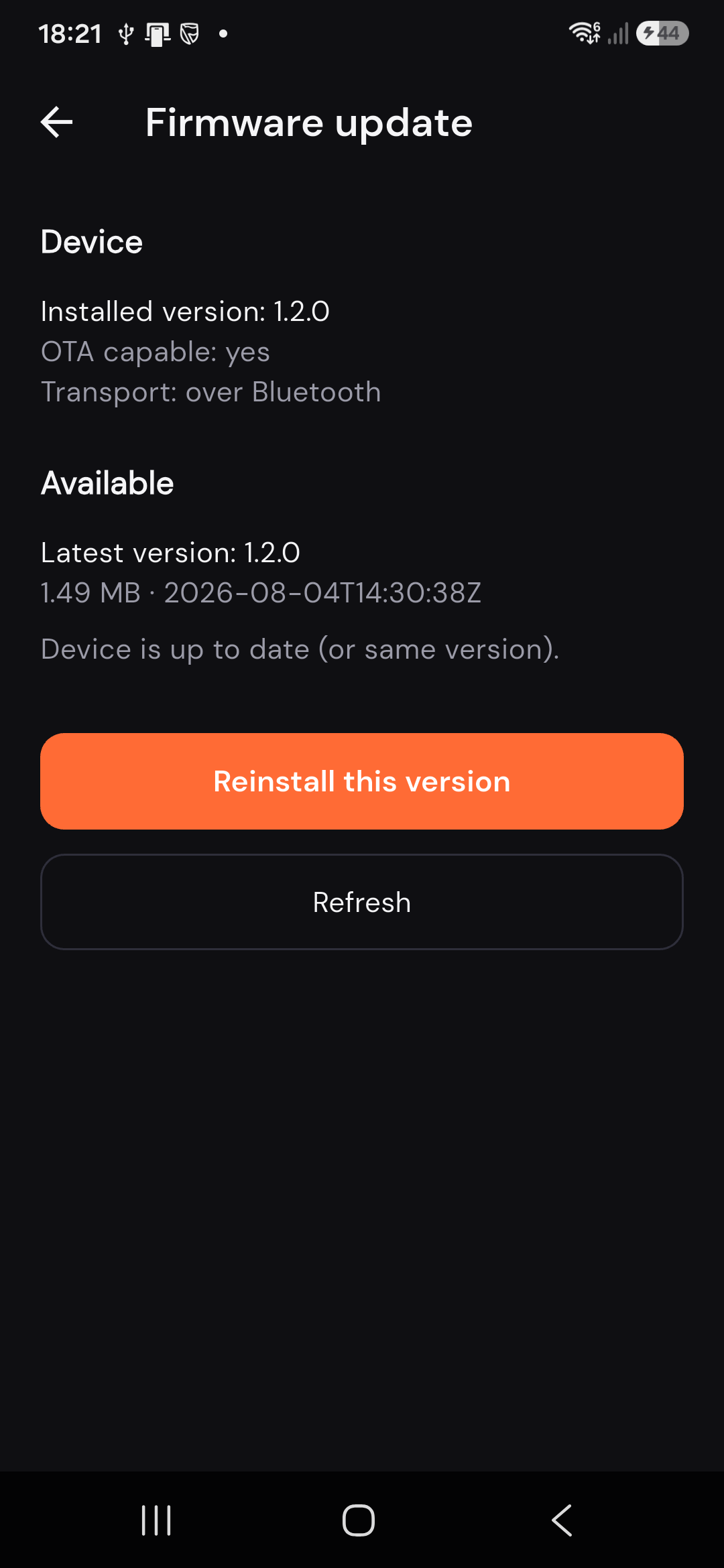
In Settings, open Check for firmware update. The app compares the version on the kiln with the latest release on kilnfriend.com.

If an update is available, start the install and keep the phone nearby (Bluetooth) or on the same cloud path the screen describes. Do not power-cycle mid-update. Stop any active firing before updating.

Firmware update screen showing installed and available versions

10

Monitor from anywhere

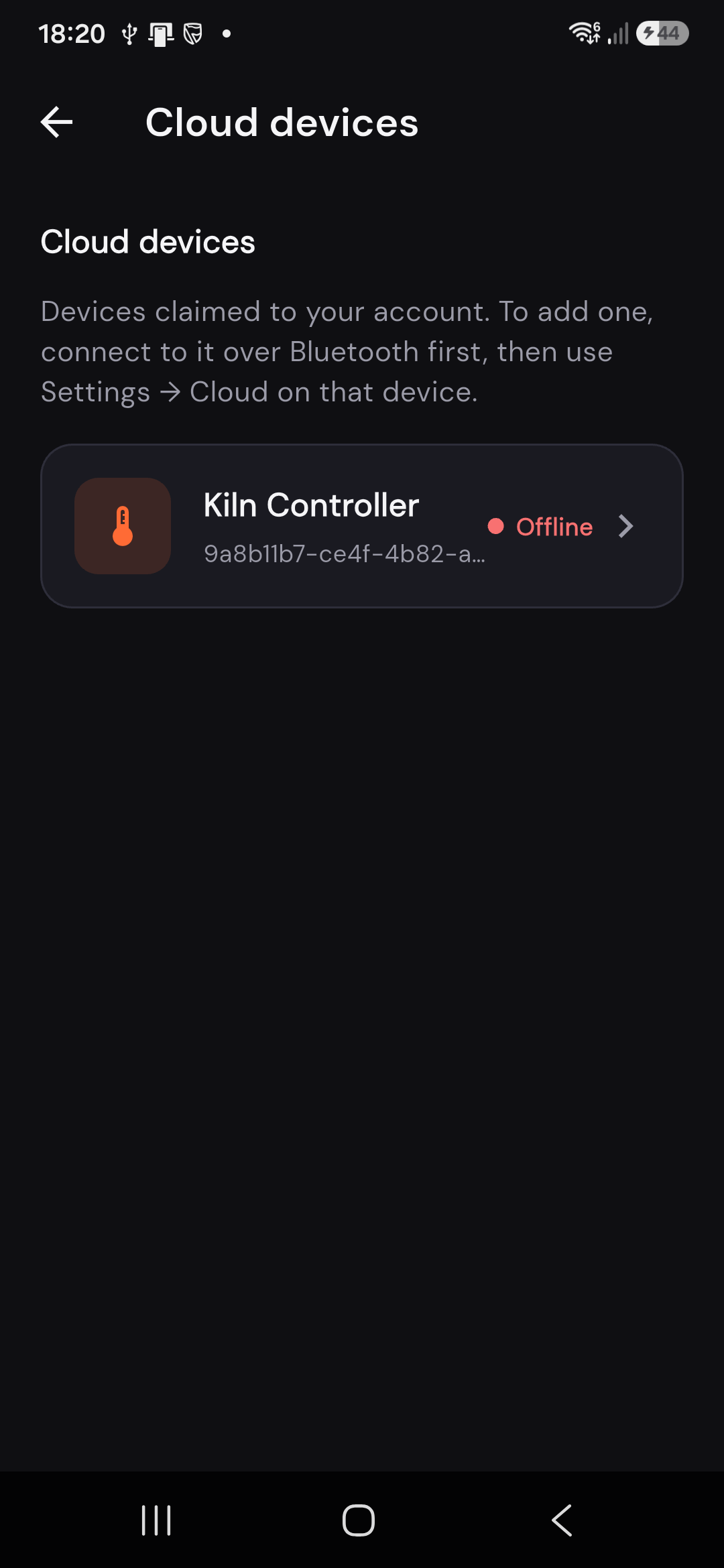
After a controller is claimed, open Cloud devicesView from the home screen. Tap a kiln to open the same Dashboard / Profiles / Logs / Settings experience over the cloud.

Online / Offline reflects whether the kiln currently has a cloud connection - not whether a firing is running.

Cloud devices list for remote monitoring

Quick tips

Download for Android Back to kilnfriend.com